Remote access for IT service providers and operations teams
Get onto any customer server in one click, without kicking a colleague off.
VisionDesk shows who is working on which server right now, signs you in to a free target, and hands over the password without the user ever seeing it. Every connection is logged, and credentials never leave your network.
Request a demo See how it works
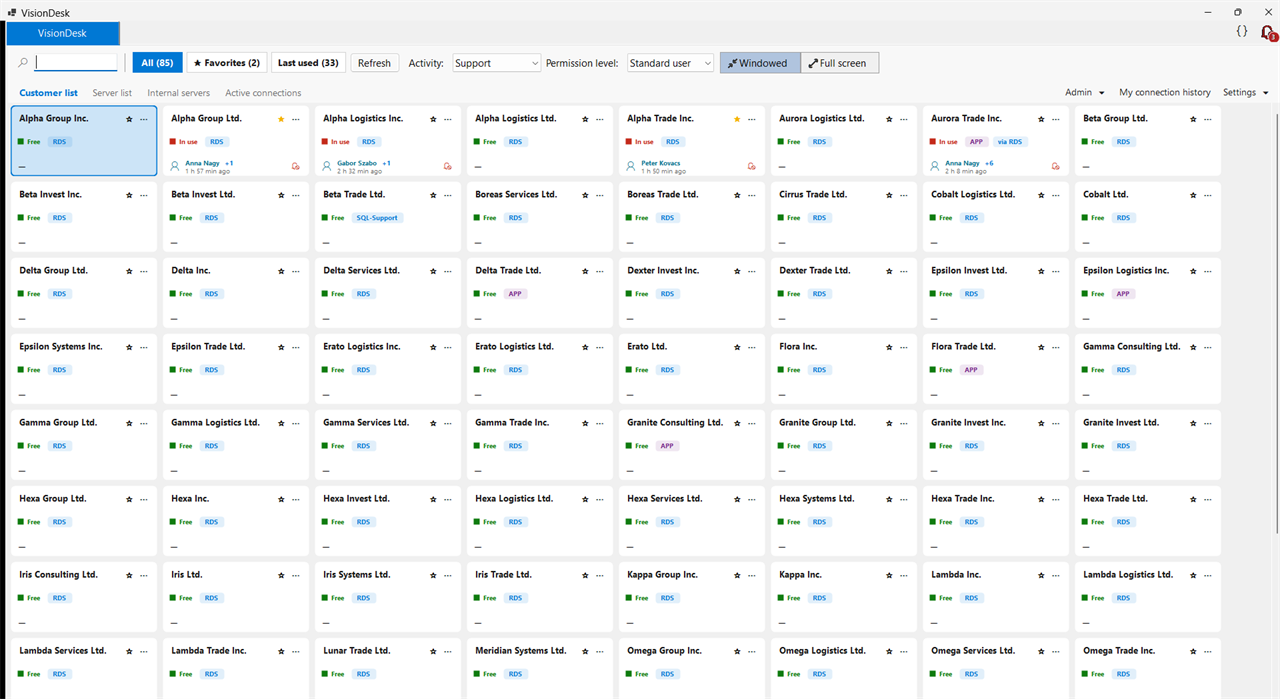
Sound familiar?
Three things that happen in every operations team
You sign in and kick a colleague off
Two people use the same support account, and the second sign-in throws the first one out in the middle of unfinished work. Windows does not show that the server is busy, so teams sort it out over the phone, or not at all.
The password is everywhere
In a spreadsheet, in notes, in chat history and in people's heads. Once someone has learned it you cannot take it back, and afterwards nobody can say who was on which server, and when.
Every sign-in starts with a search
Which server was it? Which account do I use? Where is the password? It happens several times a day, for everyone. At best it costs time, at worst someone signs in to the wrong server.
How it works
Three steps to being signed in
Your colleagues do not need to know which server is the right one, and they never look up a password.
Pick the kind of work
Support, development or operations: you define the list of activities. The activity decides which server types a colleague can reach, and with which privilege level.
Pick the customer
VisionDesk finds the right server by priority order, skips the busy ones, and signs you in with the lowest sufficient privilege level.
You are on the server
The session opens in a tab or full screen. Locking and logging happen in the background, with nothing for the user to do.
Coordination
Why teams switch
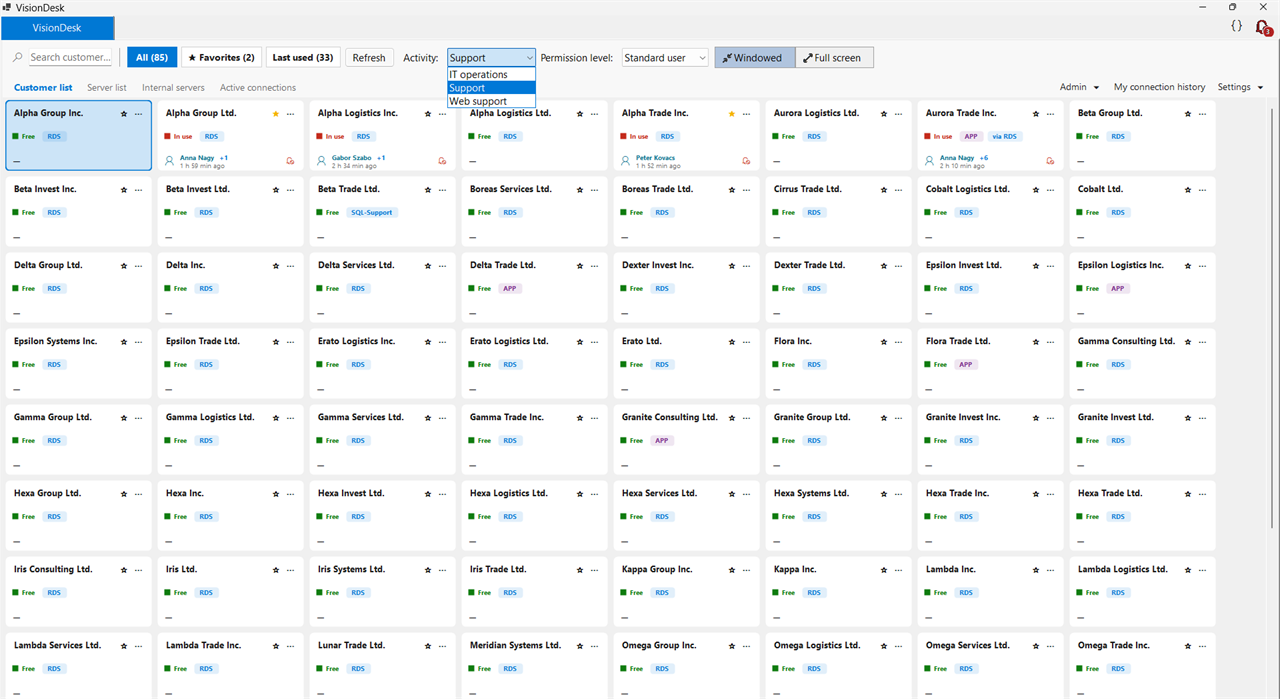
A remote desktop manager opens the connection. VisionDesk also knows who is already in.
See who is on the server
Every target is green or red. Next to a red one you see the colleague's name and since when they have been in, and whether the session is only sitting idle.
Two people can work on the same machine
Locking applies to the credential, not to the server. If a machine has two support accounts, two colleagues can work on it in parallel. Where Windows allows only one session, the system respects that.
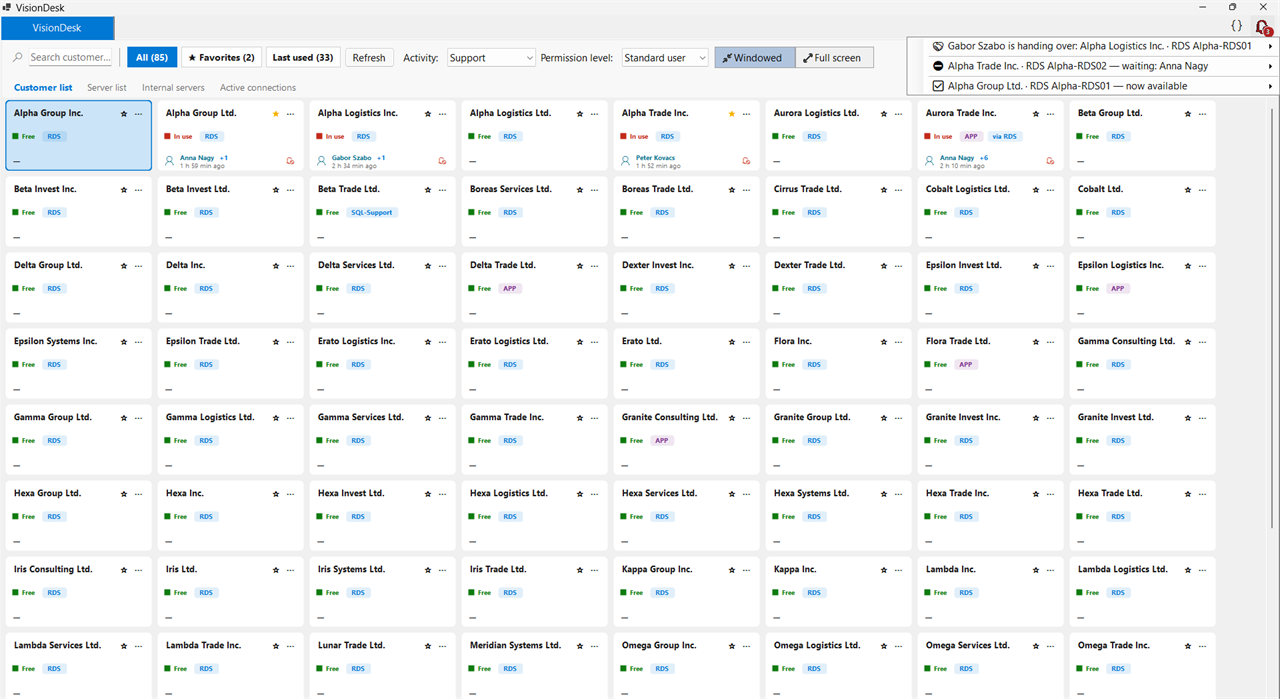
It tells you when a server frees up, and sessions can be handed over
Subscribe to a busy server and you are notified when it is released. If it is urgent, the colleague who is signed in can hand the session over in one click, and the handover is logged.
Double hop in one click
Servers that cannot be reached directly are entered through the jump server: VisionDesk builds the first connection and moves on to the target from there. Both machines get their own lock, so the jump server's availability shows too.
Control
Nobody sees the password, and every sign-in leaves a trace
The password never appears on screen
The credential goes from the broker straight into the RDP engine and cannot be copied out. Where a manual sign-in is needed, the system types it into the input field, not through the clipboard.
Support cannot hold domain-admin rights
The support group has no domain-admin level access, and it cannot be granted one for any customer. That follows from the permission model, not from a policy document.
You decide where approval is needed
Per target you set whether sign-in is Free, needs a justification, needs approval from another colleague, or is Denied. A denied target does not even appear in the list.
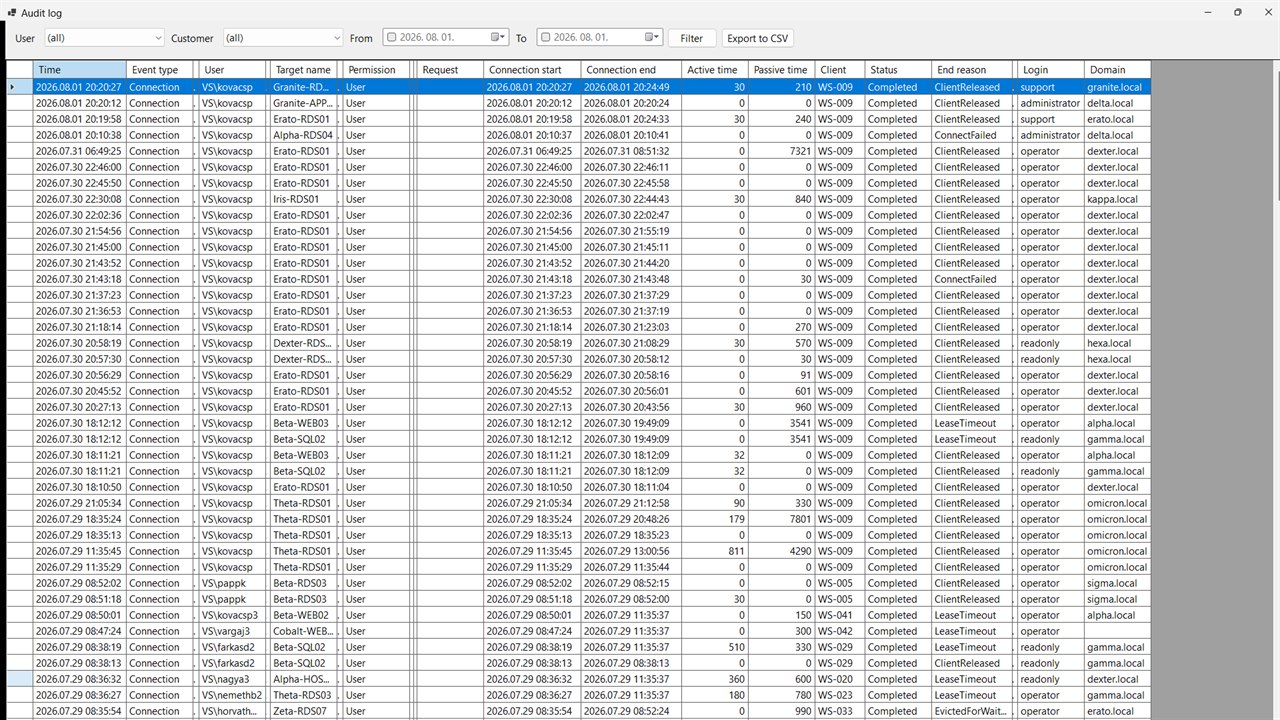
The log writes itself
Who, when, which server of which customer, with which role, how much active and idle time. Users cannot alter it, it is kept for 24 months by default and can be set to five years, and it exports to CSV for your auditor.
In detail: access control · security and architecture · NIS2 and the CRA
Our own use
We work with it ourselves, every day
We first built VisionDesk for our own team. Today 50 of our people, developers, support staff and IT operators, use it to reach the servers of about 120 customers, for ERP software support and infrastructure operations. Whatever can go wrong in a team that size, we run into first.
Native Windows client
RDP, SSH and Winbox in one client
RDP
Using Windows' own RDP engine, the one behind mstsc.exe. FreeRDP is available as a fallback.
SSH
Through PuTTY with your usual settings, or in an embedded terminal opened by the Broker.
MikroTik Winbox
For network devices, from the same list.
Manual sign-in
Where automatic sign-in is not possible, the system shows which account to use and which jump server to go through.
Alt-Tab and AltGr really work
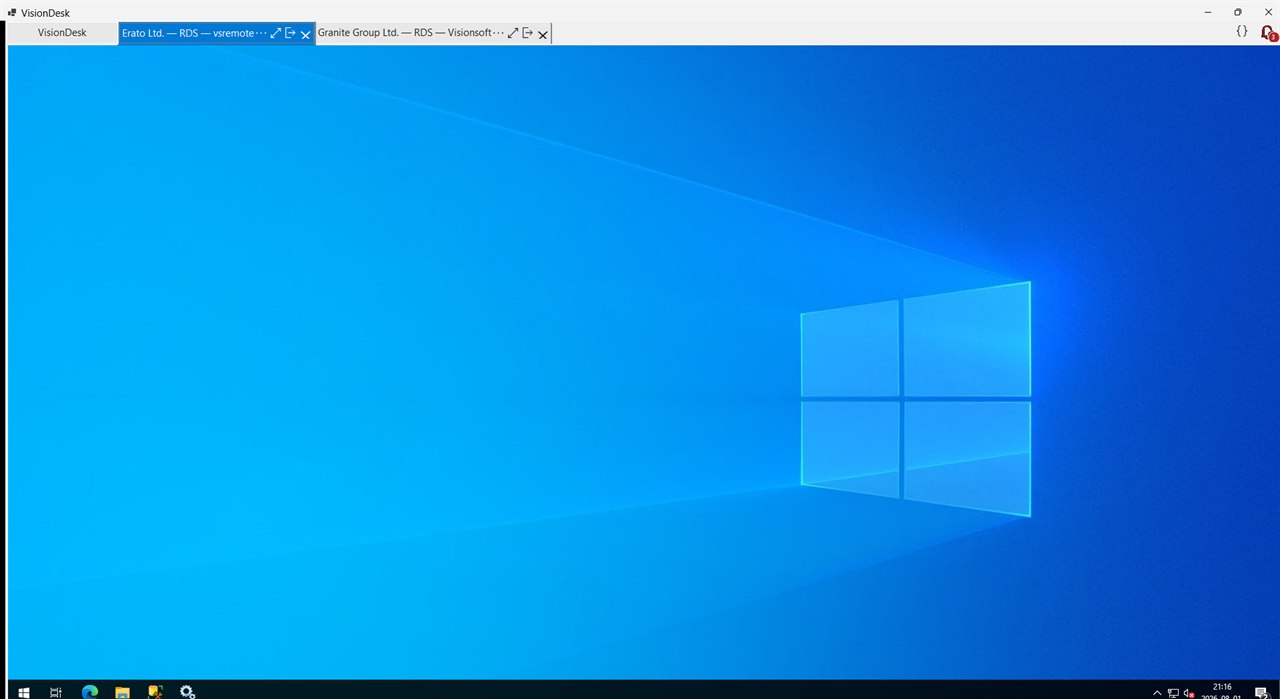
VisionDesk is a native Windows application, not a terminal running in a browser, so key combinations reach the remote machine in full screen and in a window alike. For anyone who spends eight hours a day on remote machines, that matters. For us it was the deciding requirement when we set out to build our own tool.
Also included
What else is in the box
Shared script library
The team's SQL, PowerShell and cmd scripts in one place, tagged. It filters as you type and puts the script on the clipboard with one Enter.
Failures in a worklist
The client records failed connections on its own and merges similar ones into one item. In the morning there is one list to open.
Upgrade when it suits you
You decide when to install a new release. After that, the clients update themselves from the network share.
Fits what you already run
Active Directory sign-in, one-click launch from your own ticketing or ERP system, and your existing Pleasant Password Server works too.
Fit
Who it is for, and who it is not for
With an access management tool, an accurate scope is worth more than a long feature list. If anything on the second list is a hard requirement for you, it is better to find out now.
- Several people work on the same servers.
- You run infrastructure for customers or for multiple sites.
- A Windows-based environment with Active Directory.
- You need auditable access, for example because of NIS2.
- Some servers can only be reached by hand through a jump host today.
- A cloud-only environment with no servers of your own.
- Linux or macOS workstations: the client is a Windows application.
- Servers have to be reached from a browser, with no client installed.
- A team below five users.
- Session recording, automatic password rotation or automatic credential discovery is a hard requirement.
- You are looking for a multi-tenant cloud service: VisionDesk is one organisation, one installation.
Rollout
Four steps, without switching off your current tool
Assessment
We review your server estate, password handling and team. That determines the onboarding fee.
Installation
We install the broker, the database and the client share. Nothing needs installing on the workstations.
Data entry
We enter the customers, servers, credentials and permissions. Taking data over from your current tool is part of onboarding.
Parallel operation
VisionDesk runs alongside your current tool. You switch the old one off once the team trusts the new one.
FAQ
Frequently asked questions
No. The broker and the database run in your own network, credentials never leave it, and there is no telemetry.
Domain-joined Windows workstations or terminal servers, one Windows server for the broker, and one MSSQL instance. Nothing else.
€11.00 per user per month for the first ten users, €9.60 from user eleven, excluding VAT. Reaching VPN-only customers takes the Tunnel module at €68.70 a month for up to 5 customer networks. Pay annually and you get 15% off. Onboarding is a one-off fee, quoted after an assessment.
The client is a Windows application. Target machines can include Linux (over SSH) and MikroTik devices.
No, because there is no screen recording. We log who signed in to which server, when, with which privileges and for how long.
Data migration is part of onboarding, but depending on the source structure it needs development work. It is not a one-click import, and we would rather say so upfront.
Yes, if you use Pleasant Password Server: VisionDesk reads the secrets with a read-only service account, and nothing has to move. You choose per target whether Pleasant or the built-in store is the source.
Five users is the minimum. Two colleagues can still coordinate by phone, ten cannot.
Demo
See it working
In a guided online demo we walk through availability, password handling and the log, and talk through what rollout would look like for you. We reply within one business day.